



To keep Canva Instagram templates from looking generic, always change three things: the colors to your brand's, the photos to your own and the text to the way you speak. Keep what makes them work: structure, font sizes and white space. You save hours of design and your feed looks like you.
Templates aren't cheating: they are how small brands stay consistent without a full-time designer. The problem is using them as they come. Here is how to adapt them step by step.
Why use Instagram templates?
- Consistency. One style on every post makes people recognize you before they read your name.
- Time. Designing a post from scratch takes an hour; editing a template, ten minutes.
- Less blank-page panic. A "myth vs fact" or "before and after" template already gives you the post idea.
What to change and what to keep
| Always change | Keep |
|---|---|
| Colors (use your brand guidelines) | Structure and hierarchy |
| Photos (your own, in natural light) | Font sizes |
| Copy (in your own words) | White space |
| Logo and handle | One or two fonts, no more |
No brand colors yet? Start with brand guidelines: they are what make any template look like yours.
What sizes to use in Canva for Instagram
- Portrait 3:4 post and carousel: 1080 × 1440 px. That is how the profile grid looks today, so nothing gets cropped. Armony kits already come in this size.
- Other formats: 1080 × 1350 px (4:5) and 1080 × 1080 px (square) are still accepted, but they get cropped on the profile.
- Stories and reel covers: 1080 × 1920 px. Leave about 250 px free at the top and bottom, where Instagram shows your name and buttons.
- Highlight covers: design at 1080 × 1920 with the icon centered, since Instagram crops them into a circle.
Instagram changes formats from time to time; check the Instagram Help Center if something looks cropped.
How to adapt a template in 5 steps
- Apply your palette to the whole file. Canva can swap a color on every page at once.
- Change the fonts to your brand's, if you have them.
- Replace the photos with your own. Stock photos are what give a template away.
- Rewrite the copy with your own hook on the first line.
- Save your version as a base template and duplicate it every week.
From templates to a plan
Templates solve design; a plan solves what to say. Mix post types so you aren't selling all the time: teach, show behind the scenes, build trust, connect and sell. There are 30 ready ideas in Instagram content ideas, and you can build the month for free with the Plan de Contenido app.
Common mistakes
- Keeping the template's original colors. Your feed looks like hundreds of others.
- Mixing templates from different styles. A minimal post next to one full of stickers doesn't read as one brand.
- Too much text. If people need to zoom, move the text to the caption or a carousel.
- Ignoring the safe zone in stories. Your text ends up under the buttons.
Frequently asked questions
Yes, as long as they use free elements and fonts. If a template includes a Pro element, Canva marks it with a crown and you can swap it out.
Only if you use them as they come. With your colors, photos and copy, nobody can tell a well-adapted template from a custom design.
1080 × 1440 px (portrait 3:4), which is how the profile looks today. 1080 × 1350 and 1080 × 1080 are also accepted, but they get cropped on the grid. Stories and reels are 1080 × 1920 px.
10 to 15 different post types give you enough variety for a month. What matters is that they share colors and fonts.
Wrapping up
Templates are the shortcut to looking professional every day, as long as you make them yours: your colors, your photos and your words, on a structure that already works.
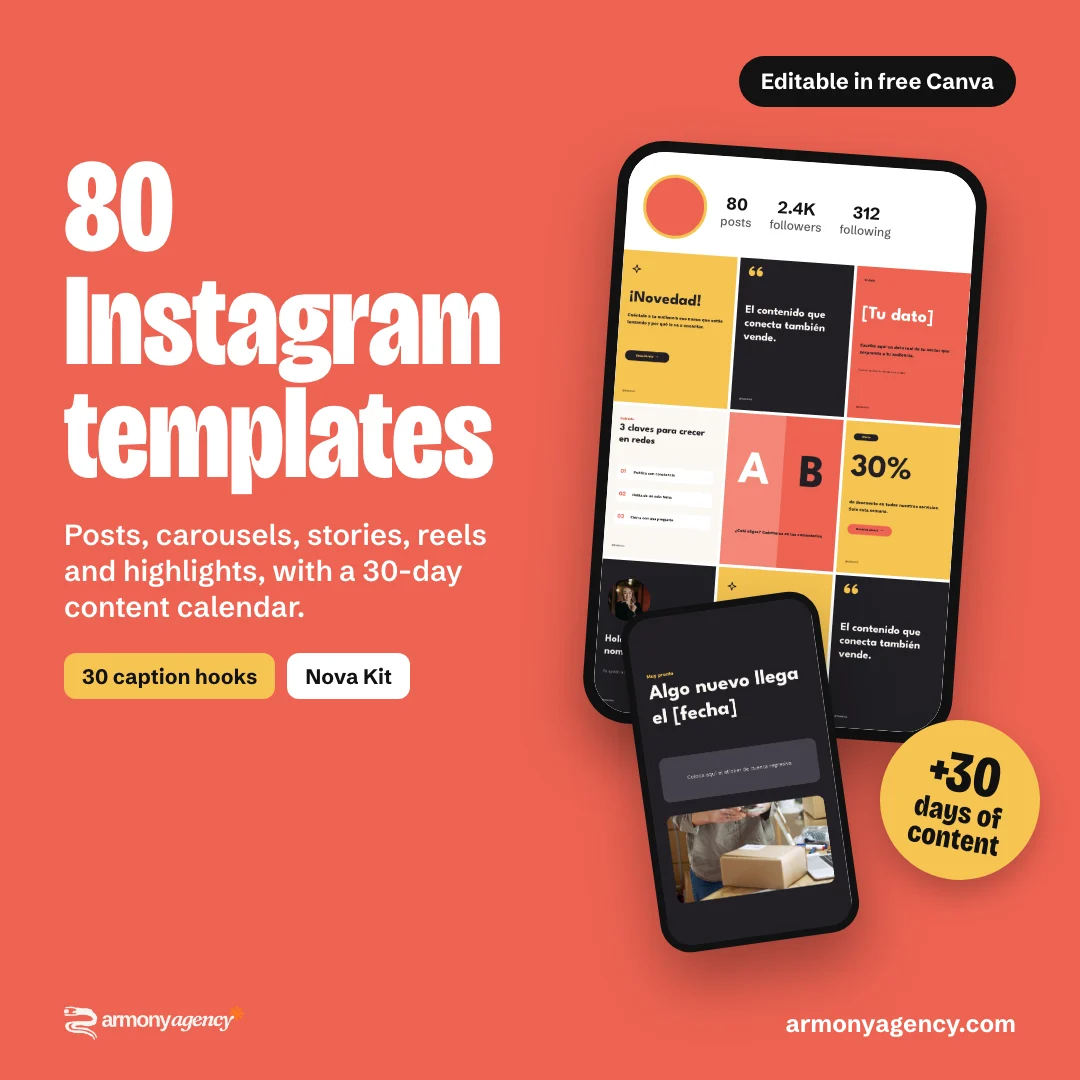
Start today: the Nova Content Kit includes 80 Canva templates, a 30-day calendar and 30 caption hooks. Prefer to hand off your social media? See our social media management or the other kits.